
Digital Weekly Specials
Give every day of the week its own offer — and let your screens run it automatically. Create a special with AI, put it on a schedule, and update every screen at once.
What are digital weekly specials?
Digital weekly specials are recurring promotions shown on your restaurant screens on a schedule: taco Tuesday, wing Wednesday, a Friday fish feature, a weekend brunch menu. They are the screen version of the chalkboard by the door or the paper sign taped to the counter — except they start and end on time, look designed, and never need to be reprinted or re-taped.
On a digital menu board, a special is just another piece of content. You create it once with the day or date range it should run, add it to a playlist, and Screenza shows it while it is in season and retires it when its window closes. See what a digital menu board is if you are starting from zero.
Why restaurants run weekly specials on screens
Four jobs a weekly special does better on a screen than on paper.
Fill the quiet days
A Monday or Tuesday offer gives regulars a reason to come in on the days they usually stay home — and the screen advertises it whether or not anyone remembers to put the sign out.
Spotlight high-margin dishes
A special gets its own artwork: a large food visual, the price, and a short description. That is attention a line on a menu list never gets.
Start and stop on time
Schedule a special for lunch only, for one day, or for a date range. When the window closes, the board goes back to your regular menu automatically.
Keep every screen in step
Change Tuesday’s offer once and it updates on the counter screen, the window screen, and every location running the same special.
A weekly specials rotation you can steal
Use this as a starting frame and swap each day for your own dishes and prices.
| Day | Special idea | Where it shows |
|---|---|---|
| Monday | Meatless Monday — plant-based feature | Lunch daypart menu board plus one promo slide |
| Tuesday | Two-for-Tuesday — pairs or combos | All-day promo loop, ends at close |
| Wednesday | Wing Wednesday — appetizer feature | Evening playlist with a large food visual |
| Thursday | Family Thursday — shareable bundle | Dinner menu board with a bundle price |
| Friday | Chef’s feature — signature dish | Premium slot in the dinner rotation |
| Saturday | Weekend brunch board | Brunch daypart, morning to early afternoon |
| Sunday | Sunday comfort menu | All-day menu board with one family promo |
How to put a weekly special on screen
You do not need a designer or a print run. Every step below happens in the same dashboard.
Create the offer. Add the dish, the special price, and a one-line description to your menu.
Generate the visual. Describe the special and AI creates a promo banner with food imagery and the price on it.
Schedule it. Pick the day, the daypart, or a date range. The special appears only inside its window.
Publish once. Every screen assigned to the playlist shows the special, and it retires itself when the window closes.
Scheduling is the same daypart system used for breakfast, lunch, and dinner menus — specials are just content with a window.
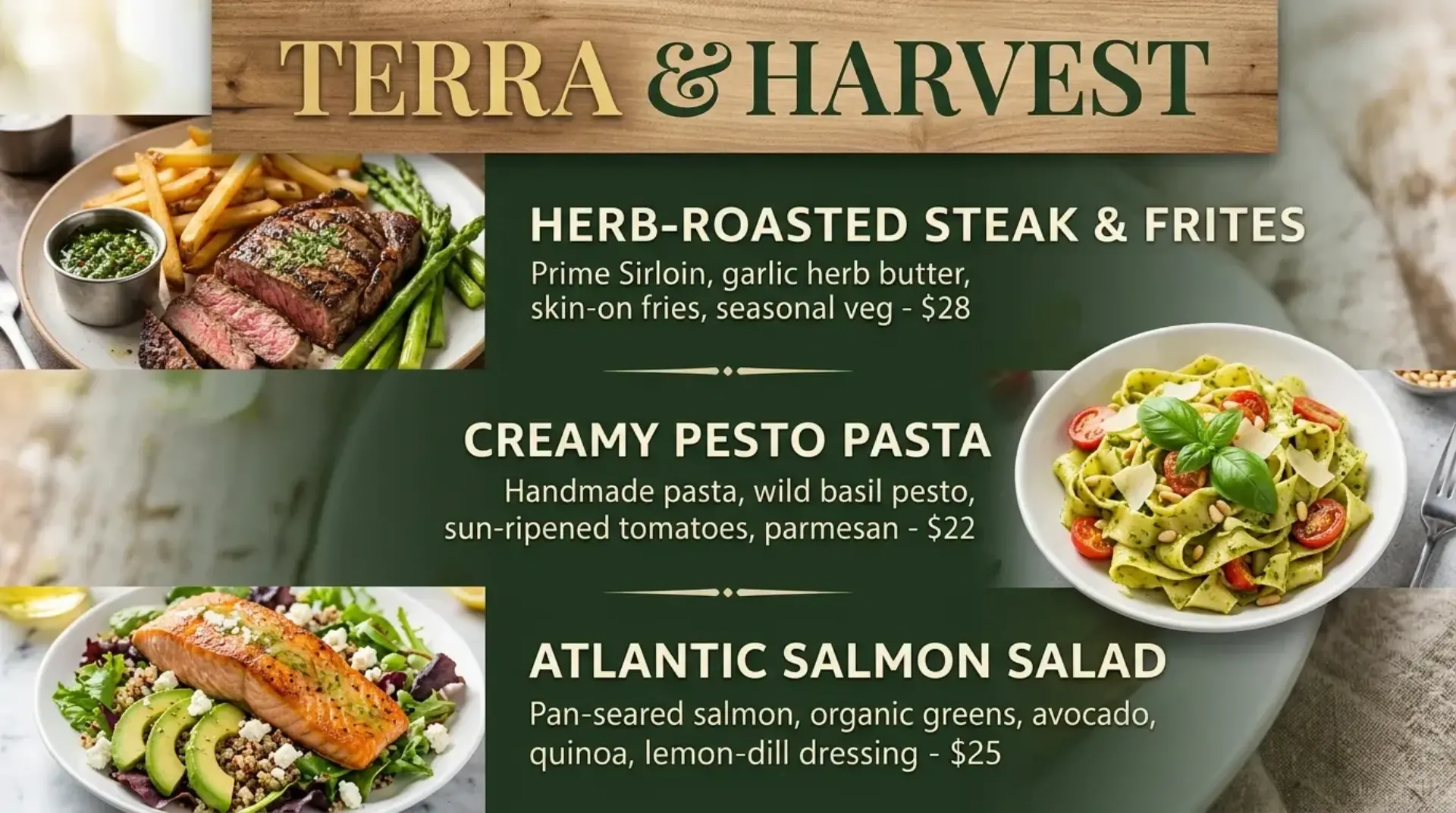
Keep specials fresh without a designer
- One new visual a week. Generate a banner for the week’s special and reuse the layout for the next one — only the dish and the price change.
- Reuse what worked. Copy a special that sold well, change the date window, and publish again next month.
- Rotate the spotlight. Give each day of the week one featured dish instead of showing five at once, so the screen stays readable.
- Retire on time. Date ranges end automatically, so a holiday promo never hangs around in February.
- Keep the base menu steady. Specials sit on top of a menu you update rarely; the content management guide explains how the pieces fit together.
Ready to build your first special? The menu board deployment guide walks through creating and publishing content step by step.
Weekly specials questions
Can the same special run on more than one screen?
Yes. Add the special to a playlist and assign that playlist to every screen that should show it. One publish updates all of them, including screens at other locations.
Can a special appear only at certain hours?
Yes. Use dayparts for recurring times (lunch only, evenings only) and a date range for one-off offers. Outside its window, the special is hidden automatically.
Do I need new artwork for every week?
No. You can duplicate last week’s special and change the dish, price, and dates, or generate a new AI visual when you want a fresh look. Both take a couple of minutes.
What happens when a special ends?
The screen returns to the regular menu for that daypart. Nothing needs to be deleted manually, and customers never see an expired offer.