New to Screenza? This guide takes you from a fresh account to a live menu board, step by step. By the end you will have a managed menu board running on the TV you already own, live in about 15 minutes. You need three things: a Screenza account, your menu as a photo or PDF, and a display that can run a browser — or the free Screenza player. Follow the eight steps below in order; each one takes a minute or two.
Before you start
Get these four things in place first — the setup goes much more smoothly.
- A Screenza account — the free plan covers one screen, so you can follow every step without paying.
- Your menu as a photo or PDF — a phone photo of your printed menu is enough; Screenza imports the items and prices for you.
- A screen and something to drive it — a TV, monitor, or tablet, plus any device with a browser: a mini PC, laptop, streaming stick, or smart TV.
- A dedicated player (optional) — install the free Screenza player for Android or Windows and the device boots straight into your menu board.
Sign In
Log in to your Screenza account.
- Navigate to
app.screenza.tvin your browser. - Enter your email address and password.
- Click Sign In to access your dashboard.
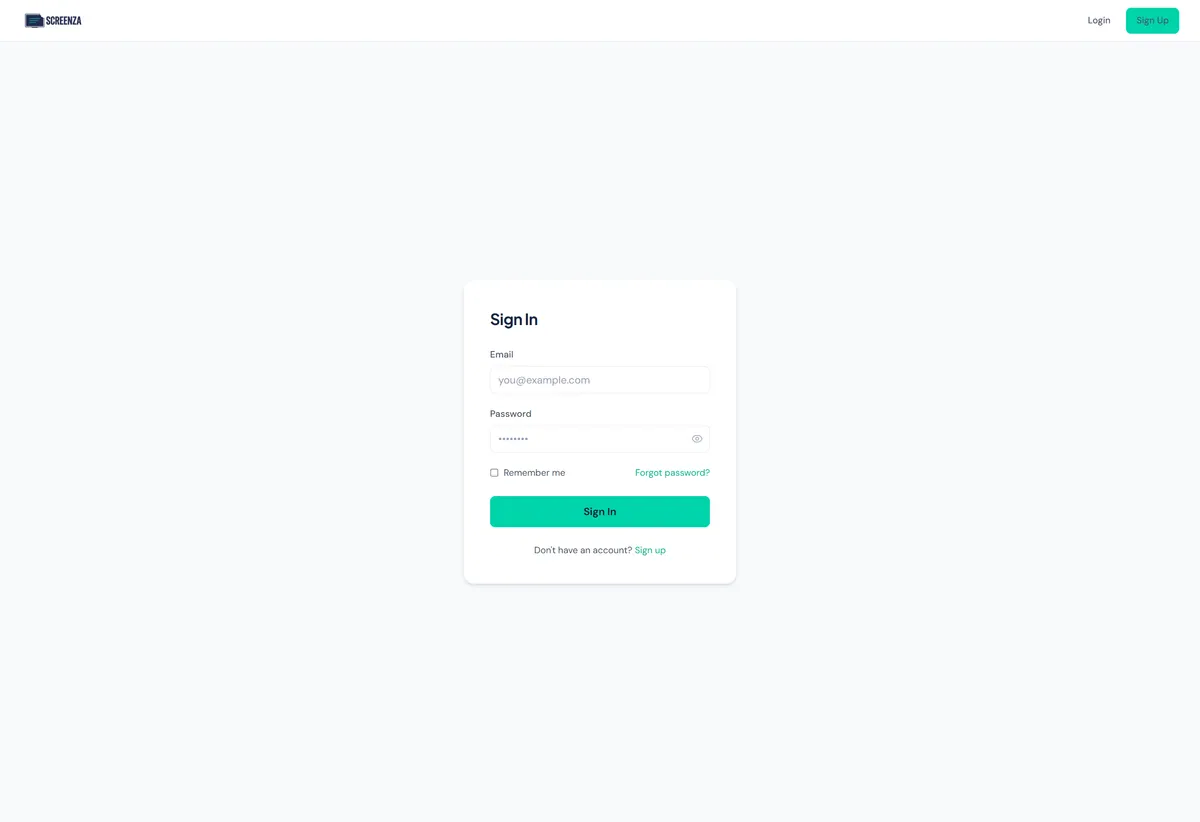
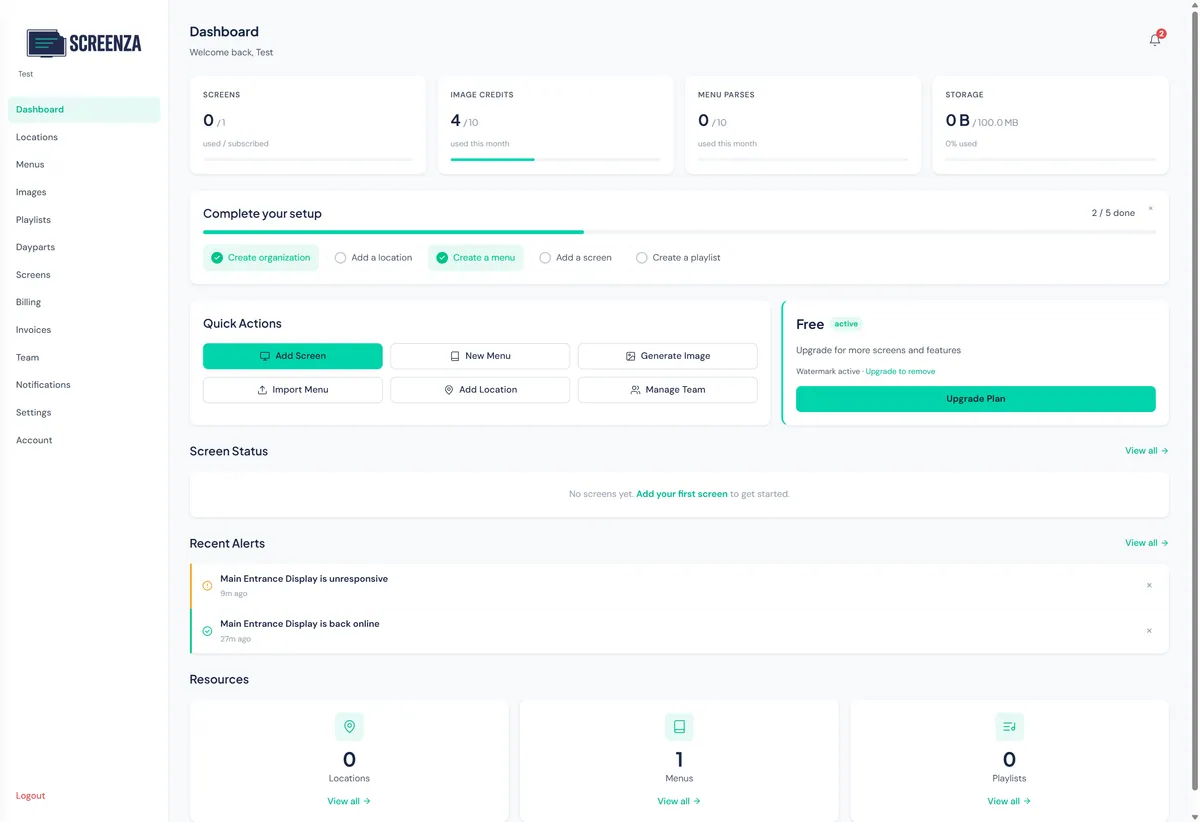
Tip: Bookmark app.screenza.tv for quick access.
Create a Location
Add your restaurant’s physical location.
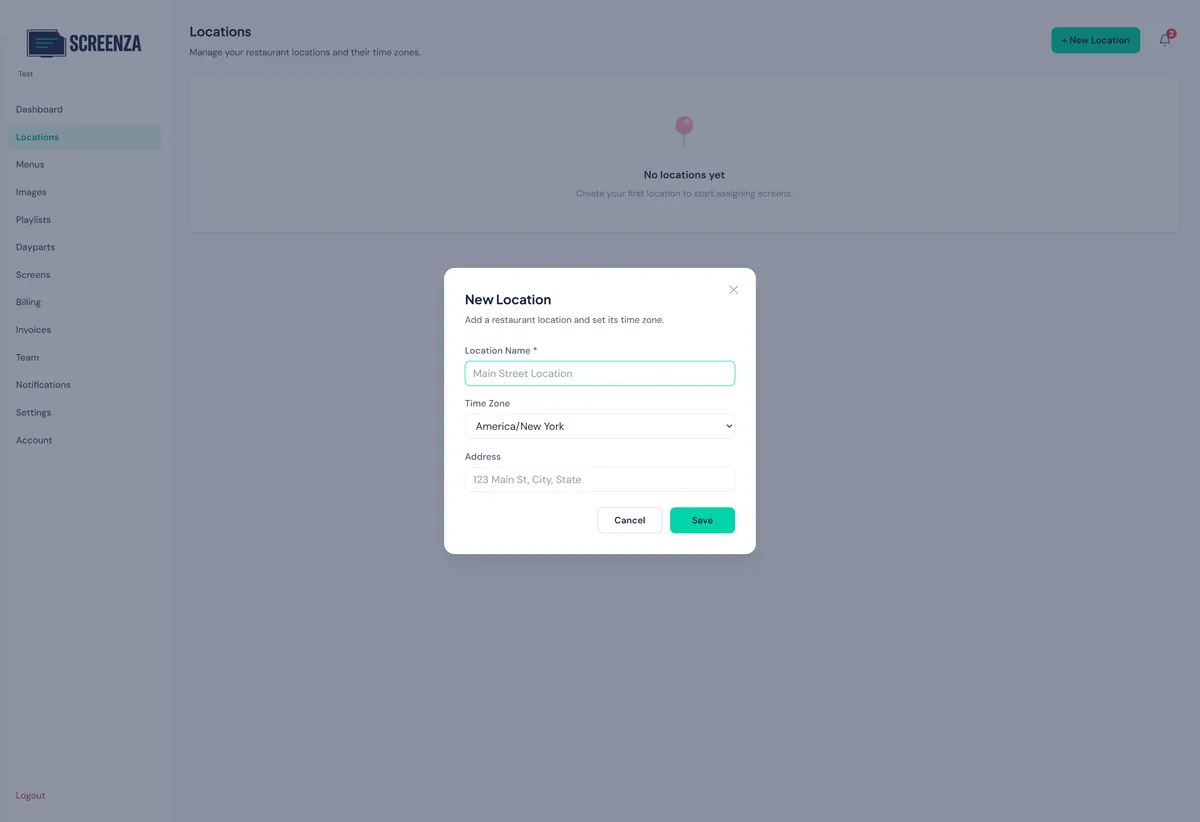
- Click Locations in the sidebar.
- Click + New Location.
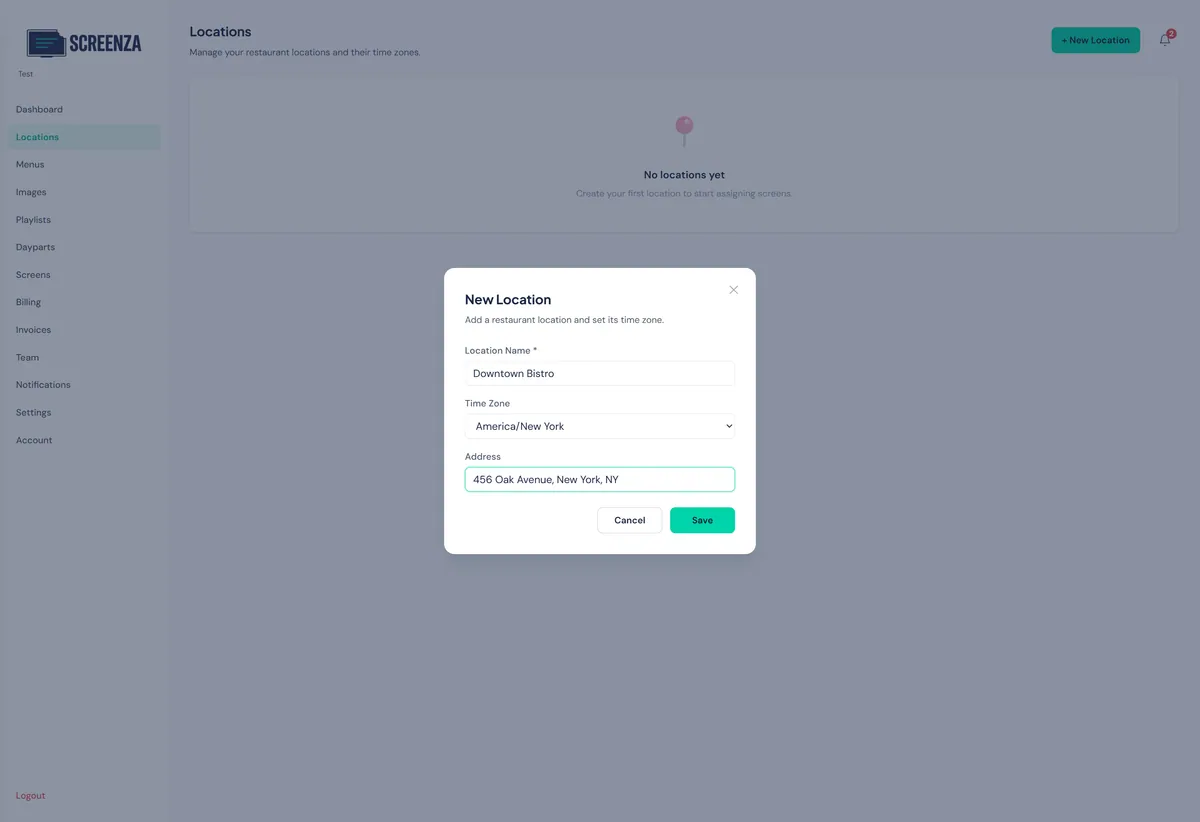
- Fill in your restaurant’s name, timezone, and address.
- Click Save.
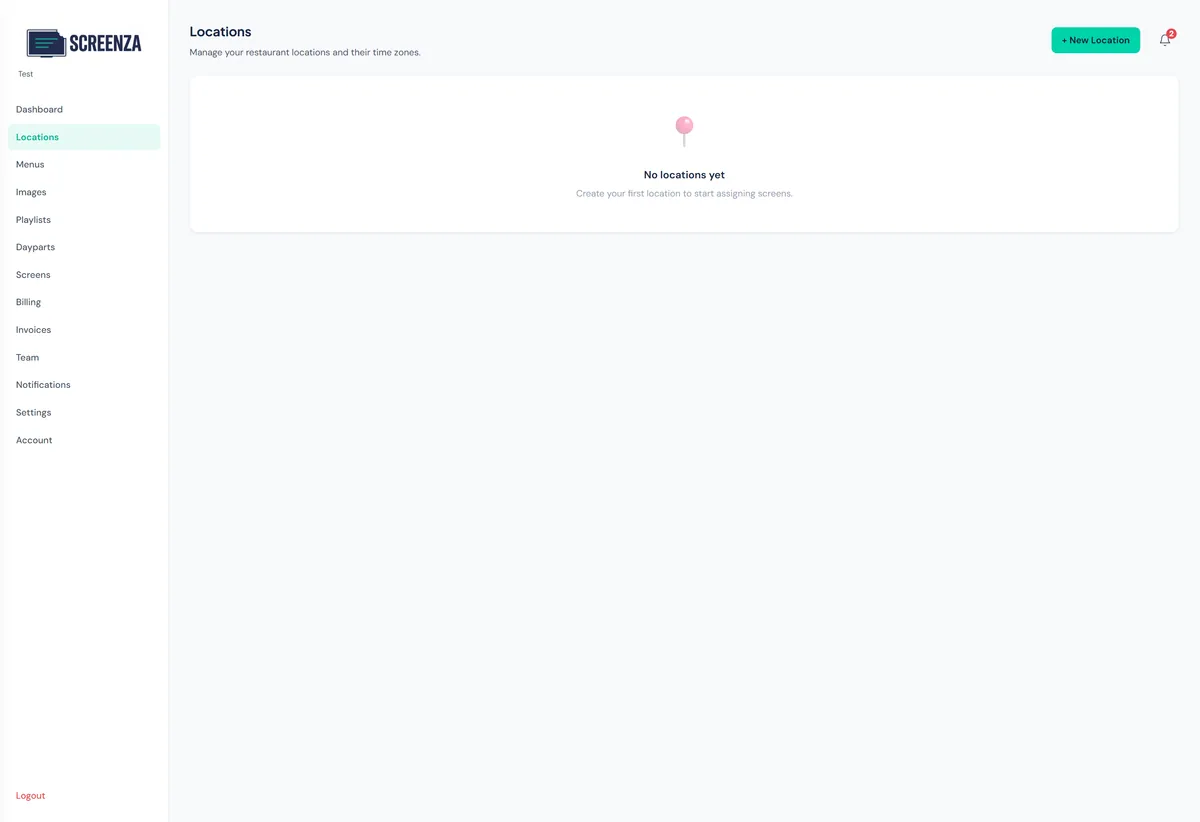
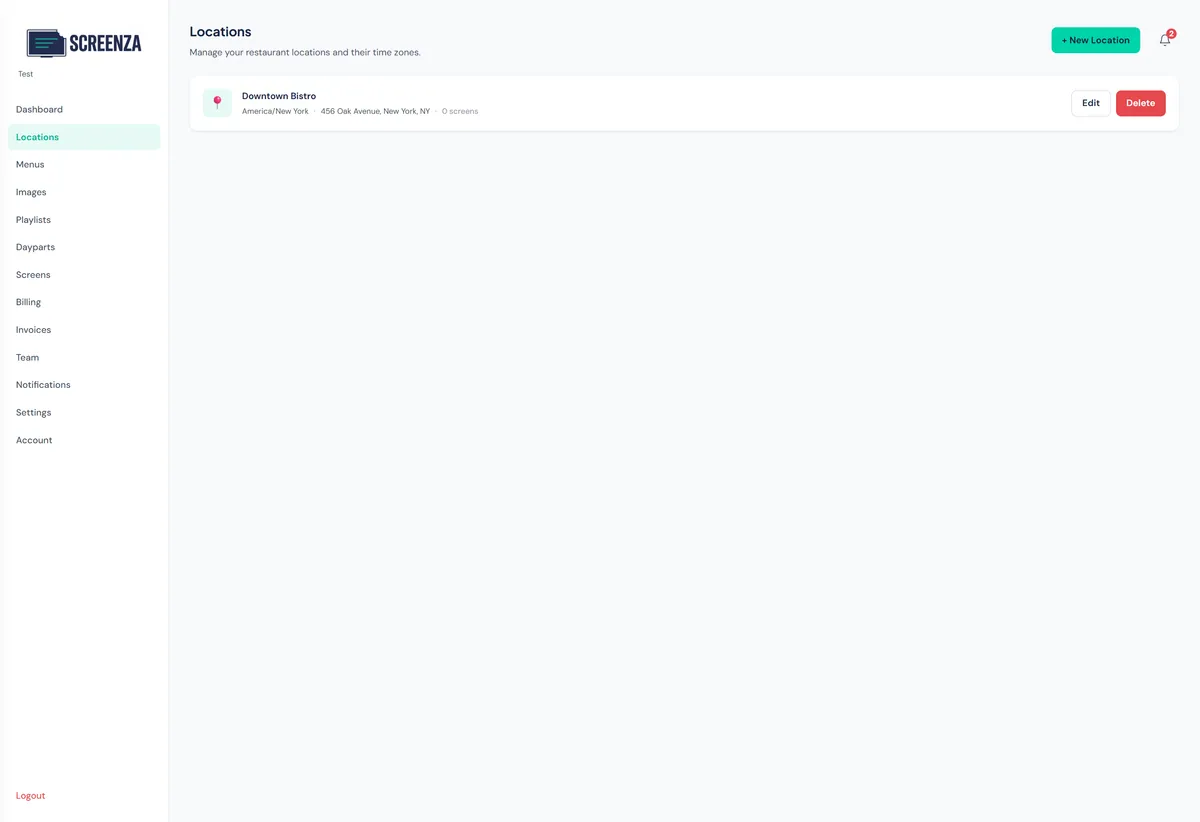
Tip: You can create multiple locations for different restaurant branches.
Create a Screen
Set up a display screen for your content.
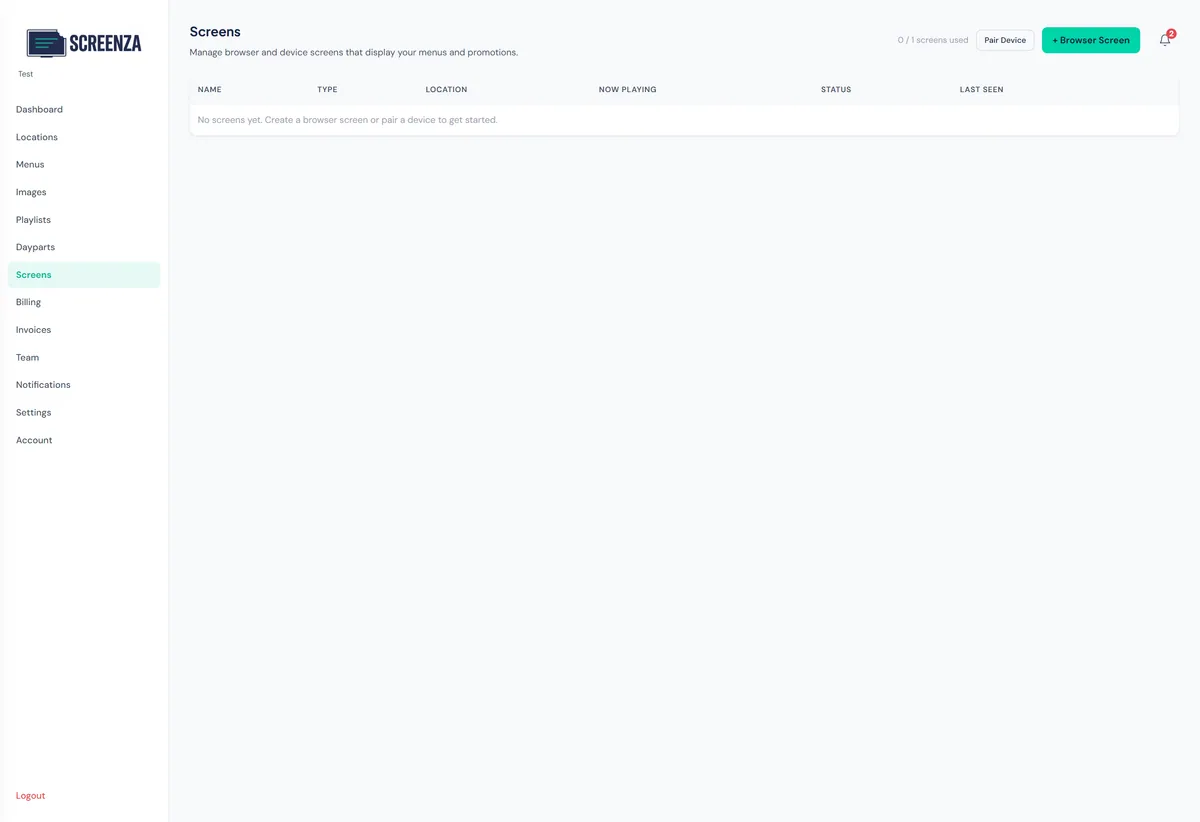
- Click Screens in the sidebar.
- Click + Browser Screen to create a browser-based display.
- Set a screen name and select your location.
- Click Create Screen.
If you have an Android device or Windows mini PC running the Screenza Player app, you can also click Pair Device to add it using the pairing code shown in the app.
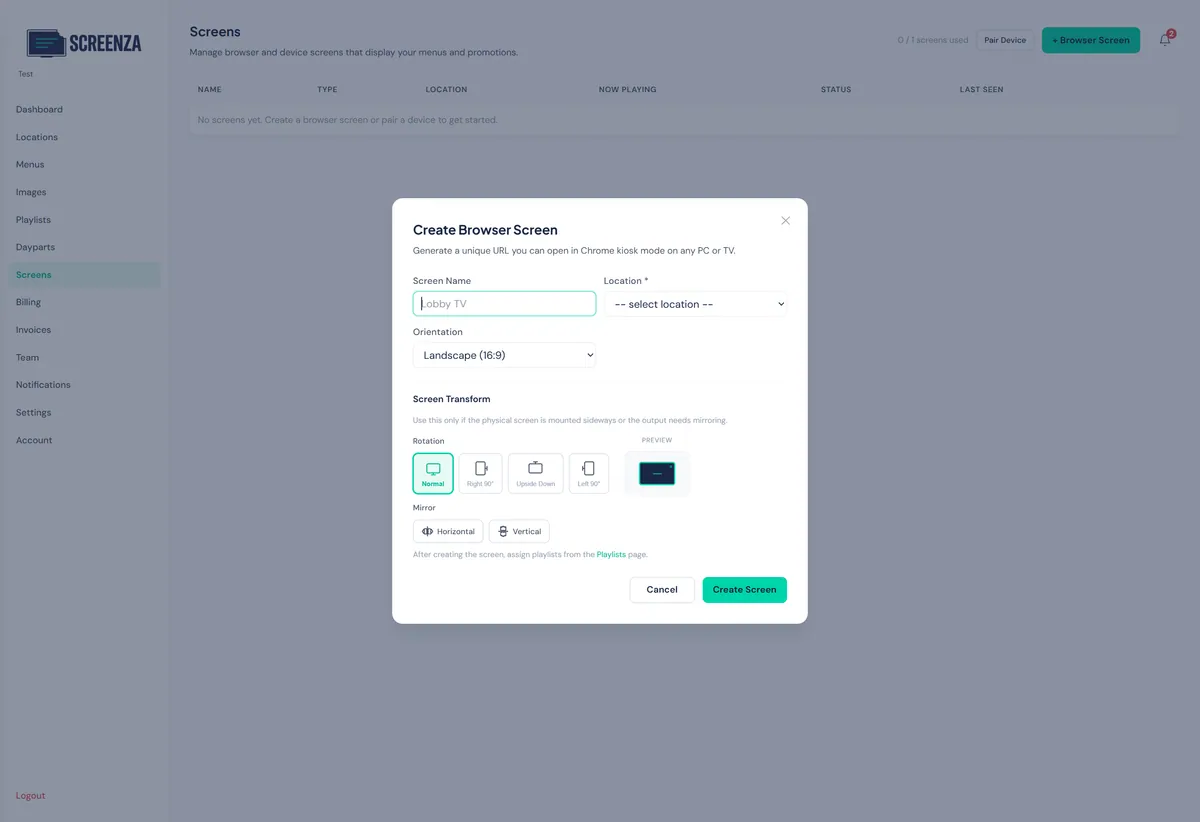
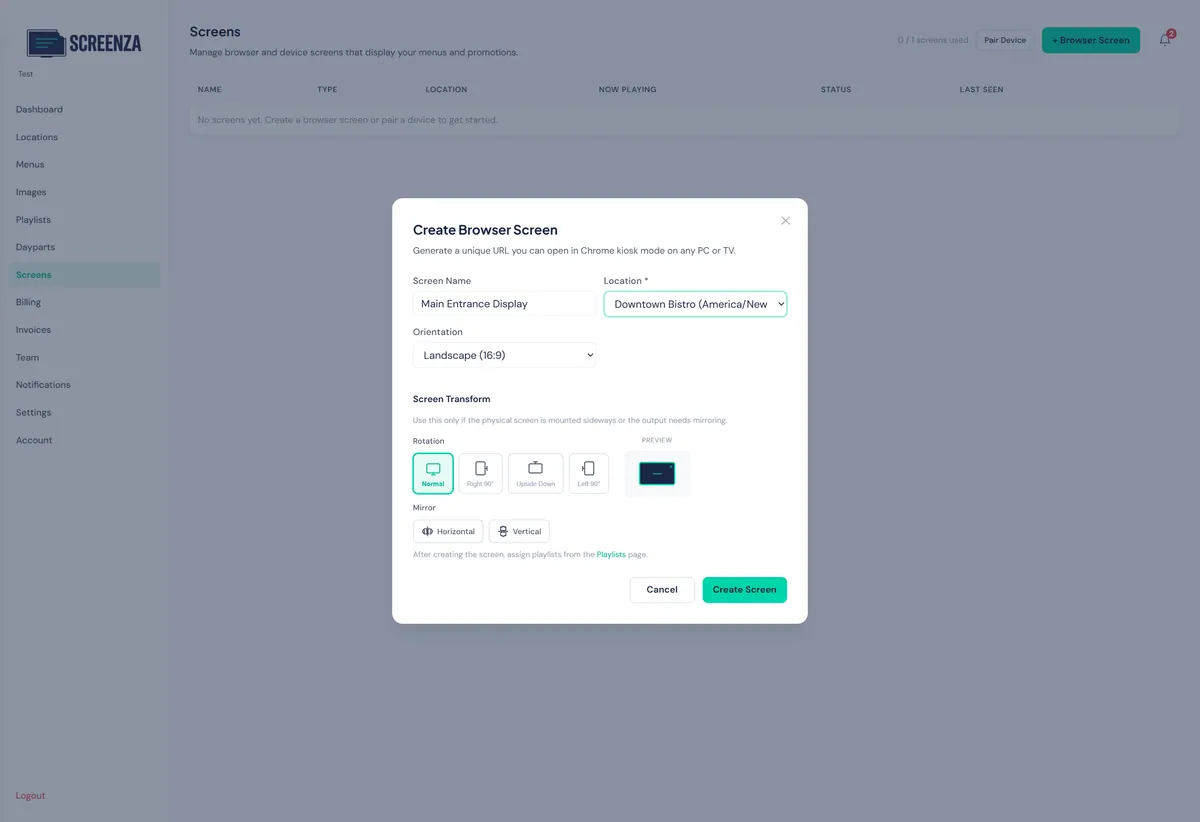
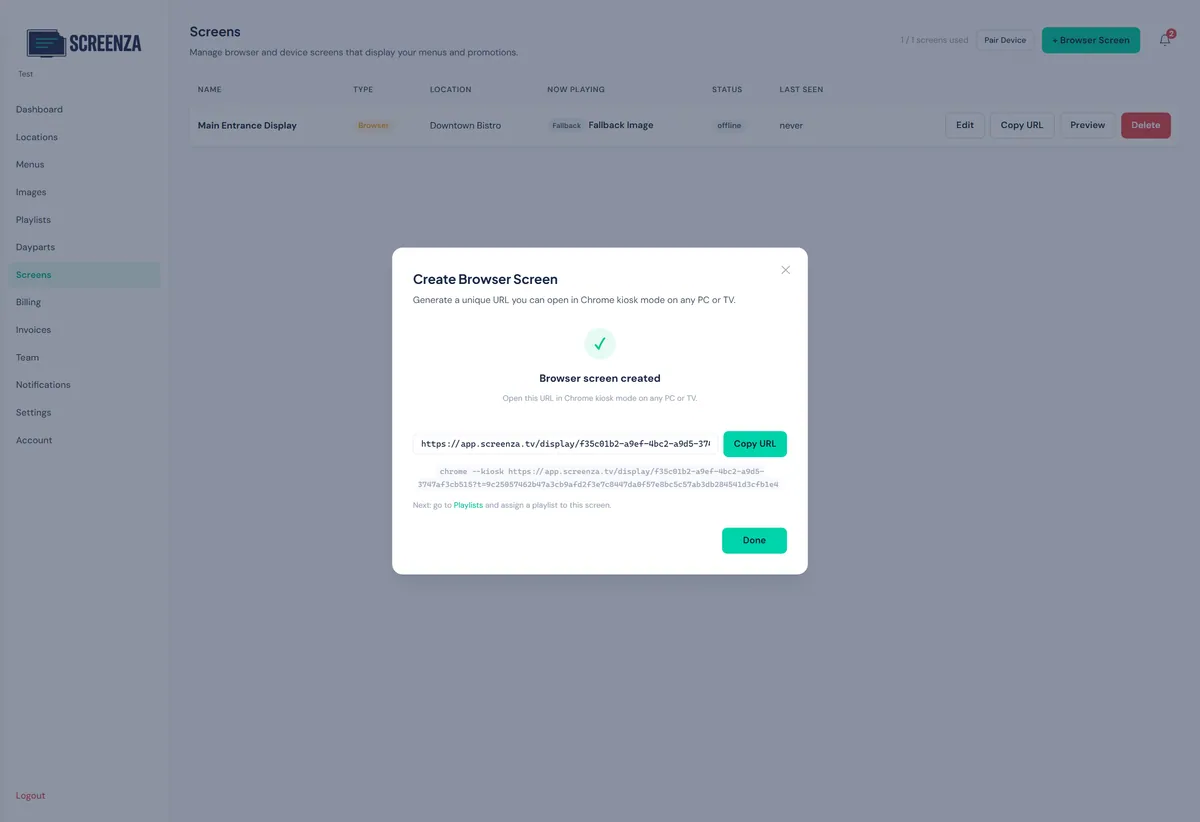
Tip: Copy the generated URL to open it in Chrome kiosk mode on any TV or PC.
Generate a Menu Board
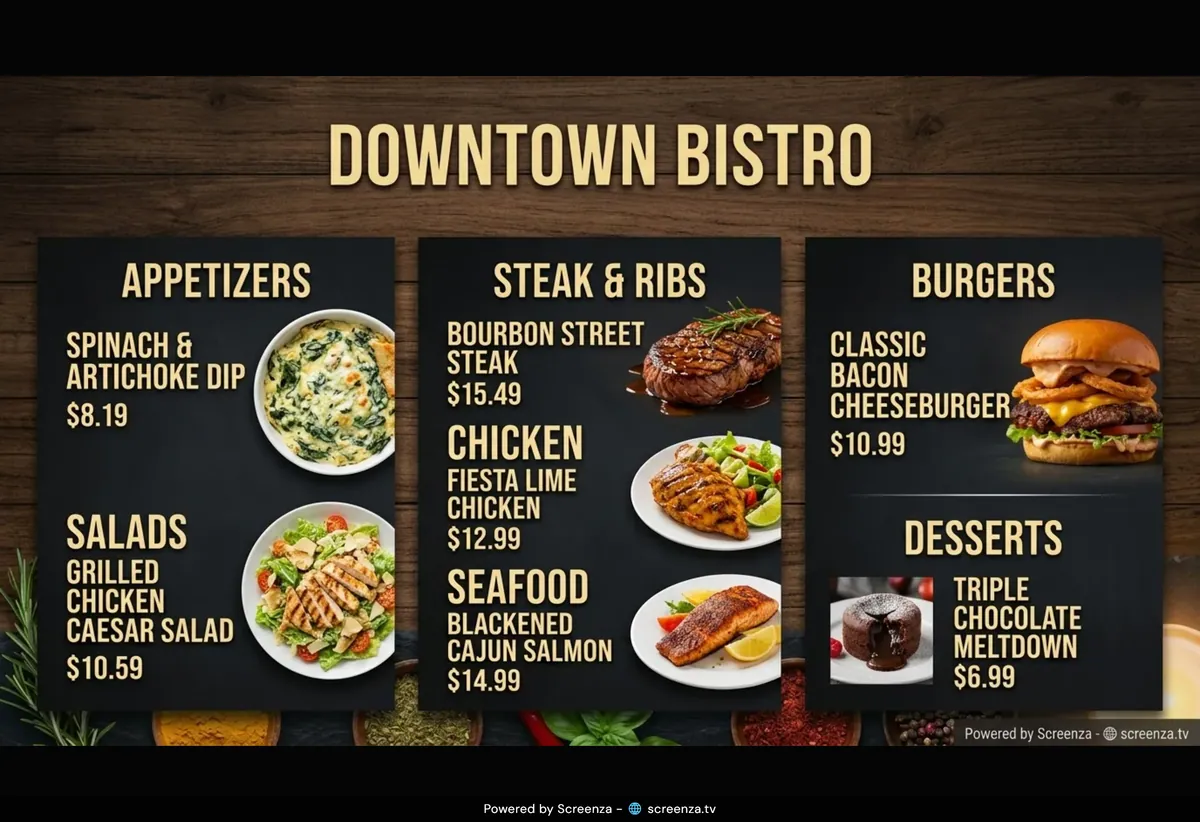
Create an AI-powered menu board image from your menu.
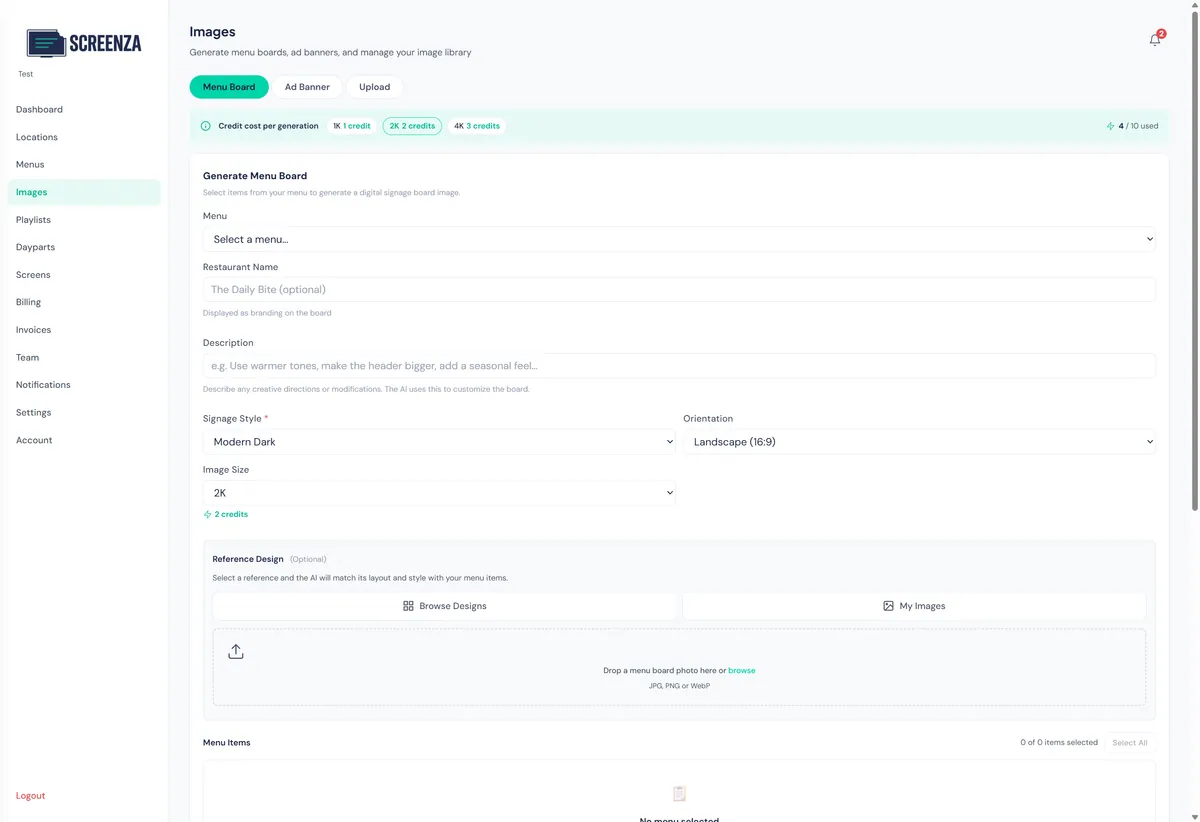
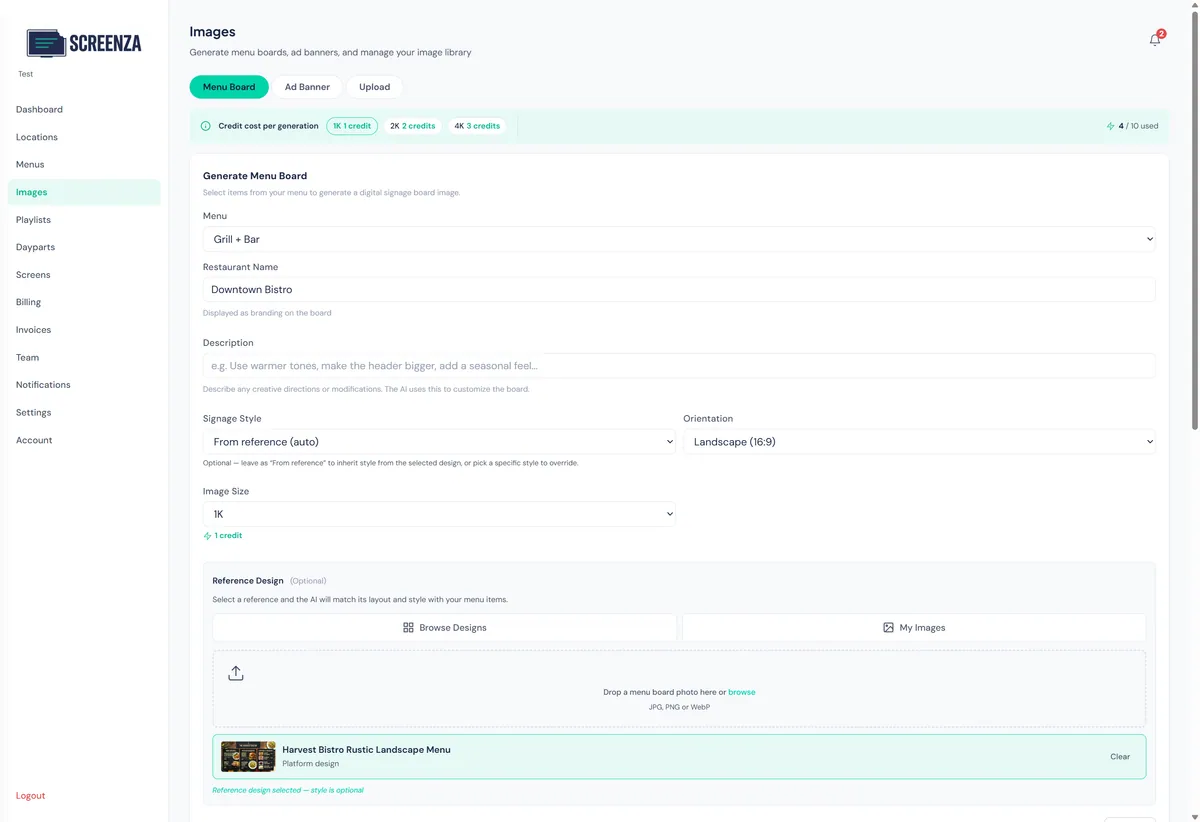
- Click Images in the sidebar, then select the Menu Board tab.
- Choose your menu from the dropdown and enter your restaurant name.
- Choose the Image Size that matches your display — for example, use 4K for ultra-sharp results on 4K screens, or 1K for quicker generation on smaller displays.
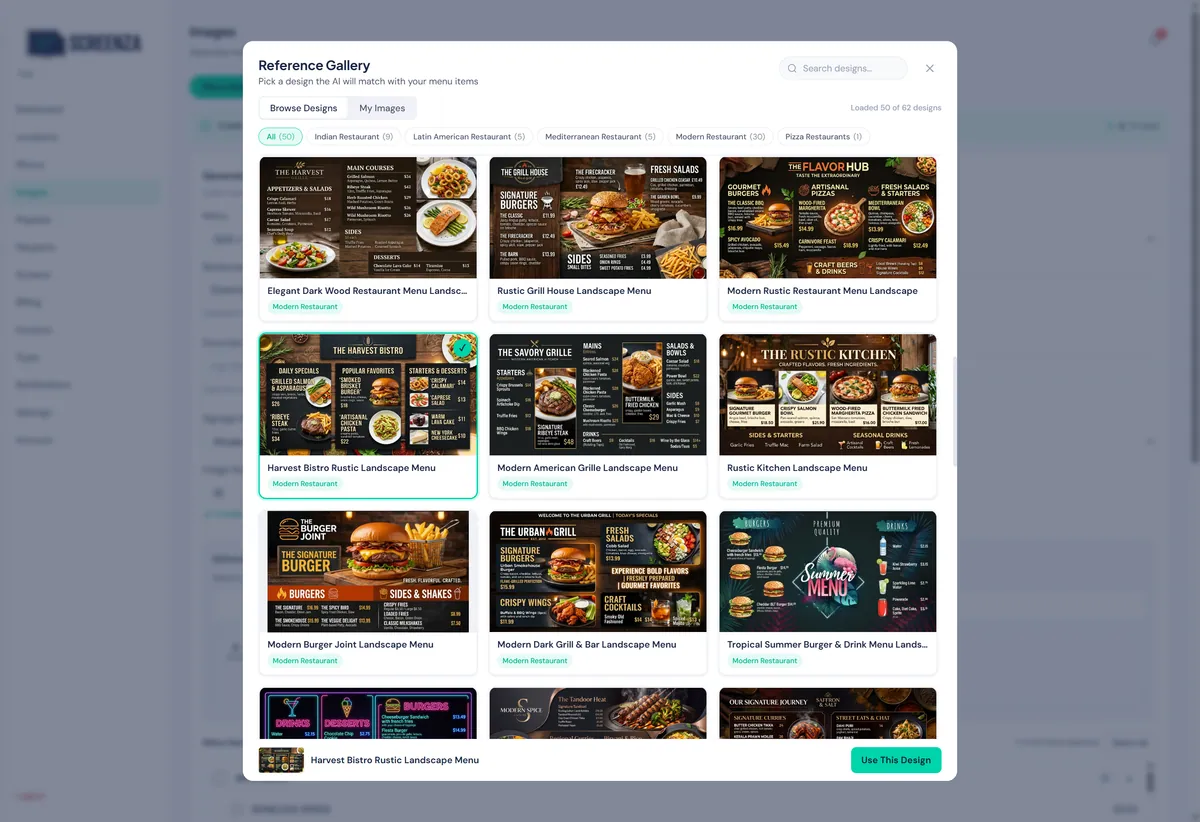
- In the Reference Design section, click Browse Designs and pick a design you like from the gallery — the AI will match its layout and style with your menu items.
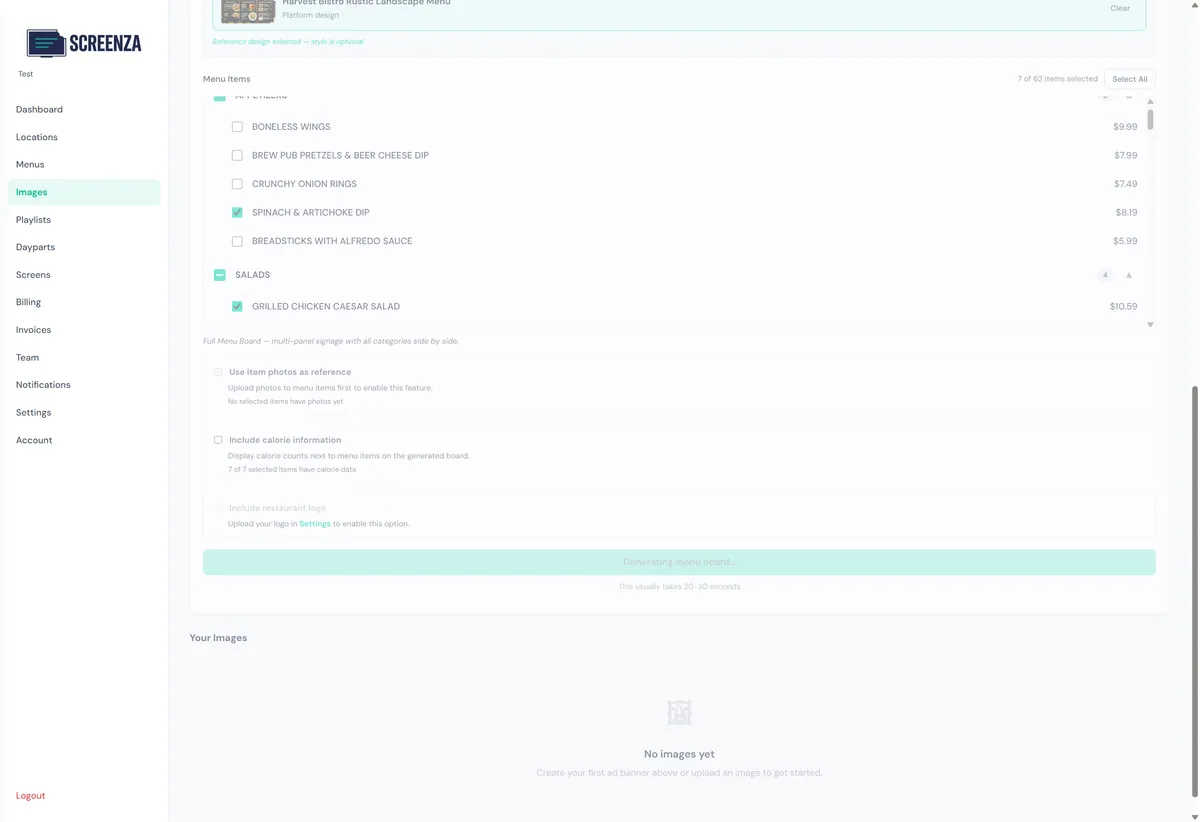
- Select the menu items you want to feature, then click Generate Menu Board.
You can also upload your own reference image or even snap a photo of a menu board you like — the AI will use it as a style guide. The signage style is automatically matched to your chosen reference, so there is no need to set it manually.
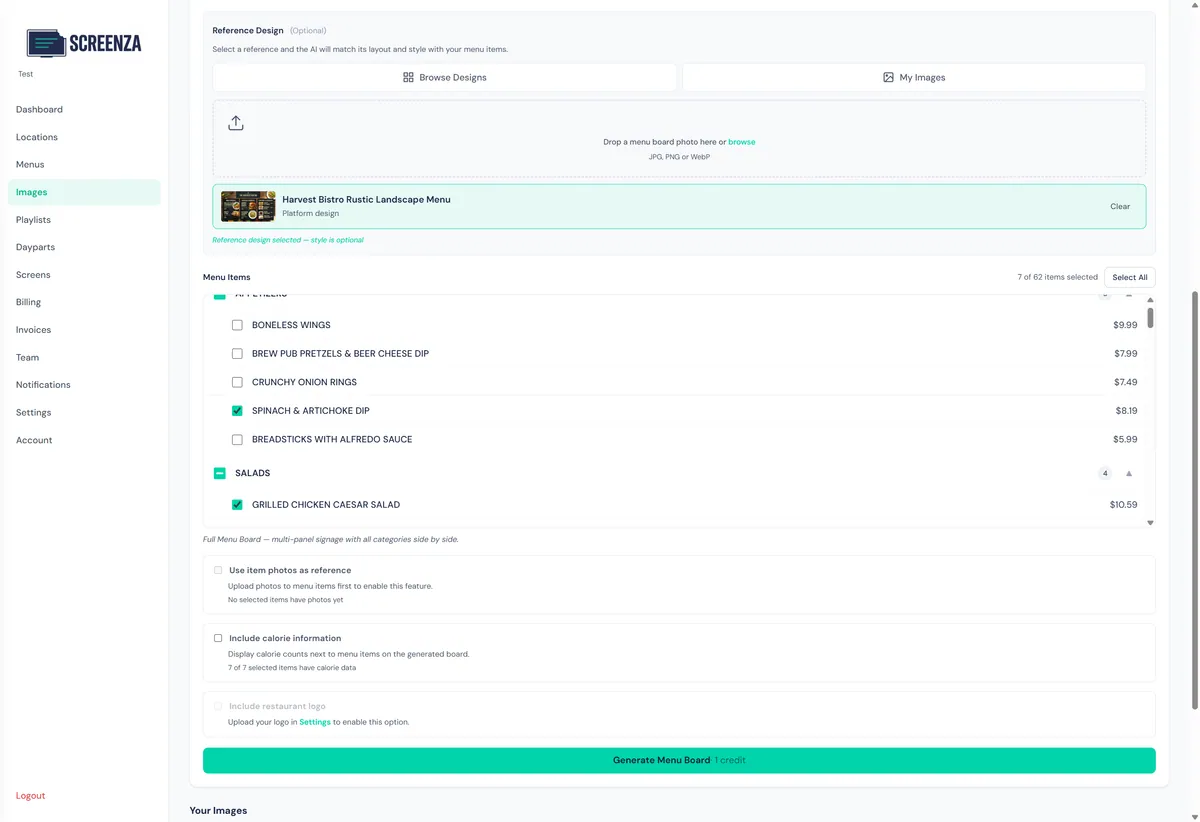
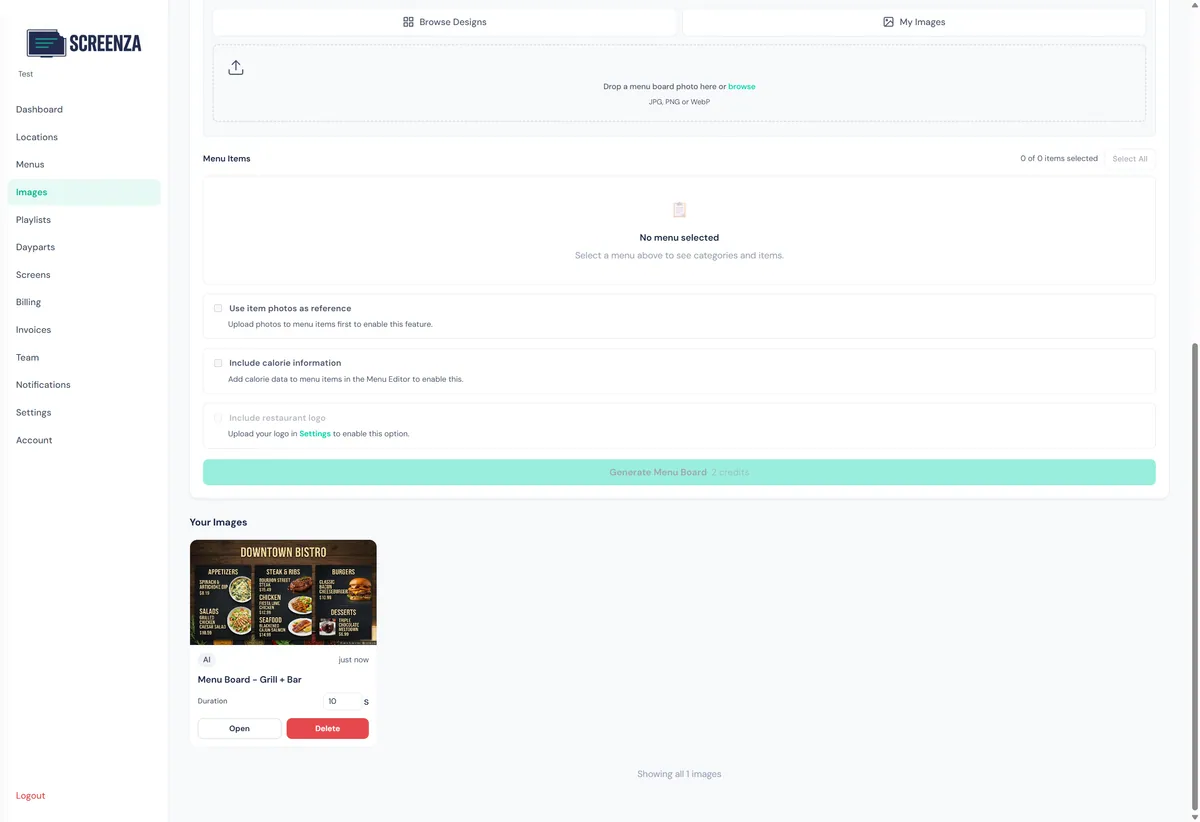
Tip: You can select as many menu items as you want, but for the best visual result we recommend featuring a focused selection — a handful of items or a few categories per board. The ideal count also depends on the reference design you pick; some layouts work better with more items, others with fewer. When in doubt, start small and generate another board later for additional items.
Create a Playlist
Build a playlist to organize your content.
- Click Playlists in the sidebar.
- Enter a name for your playlist.
- Click Create.
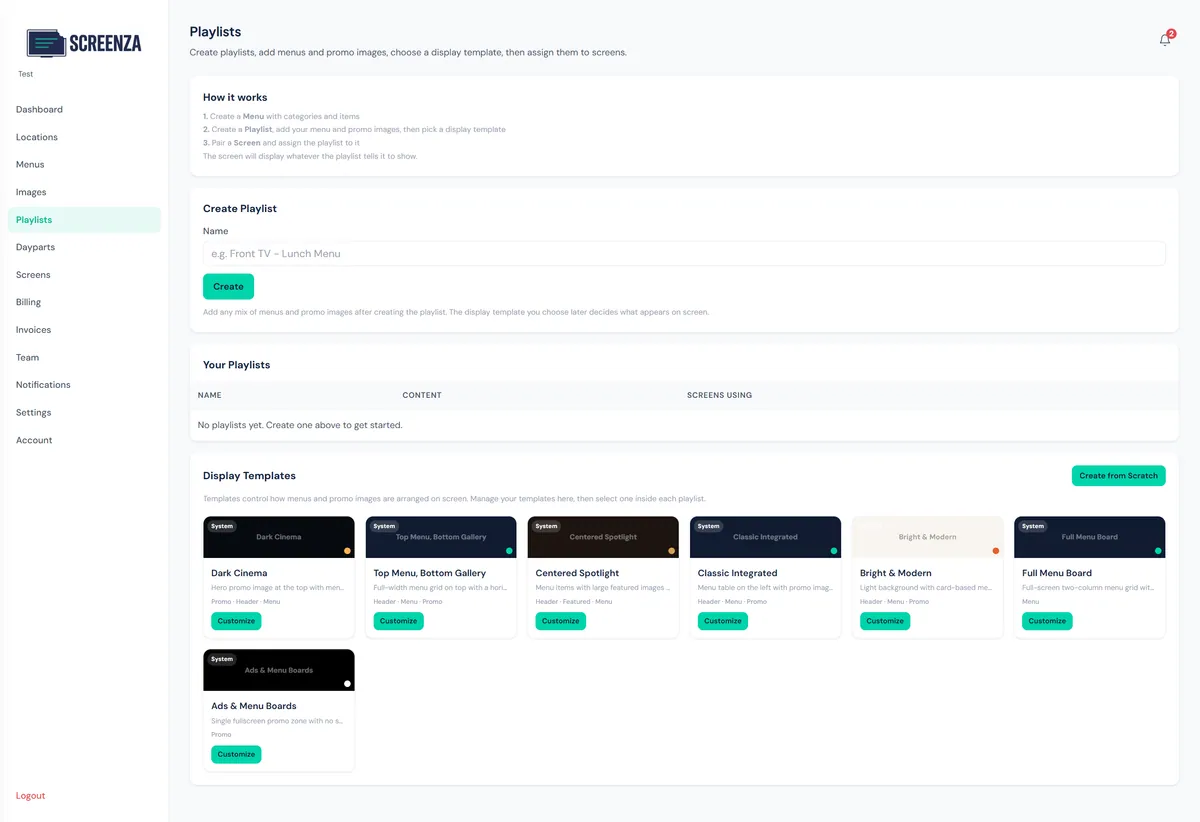
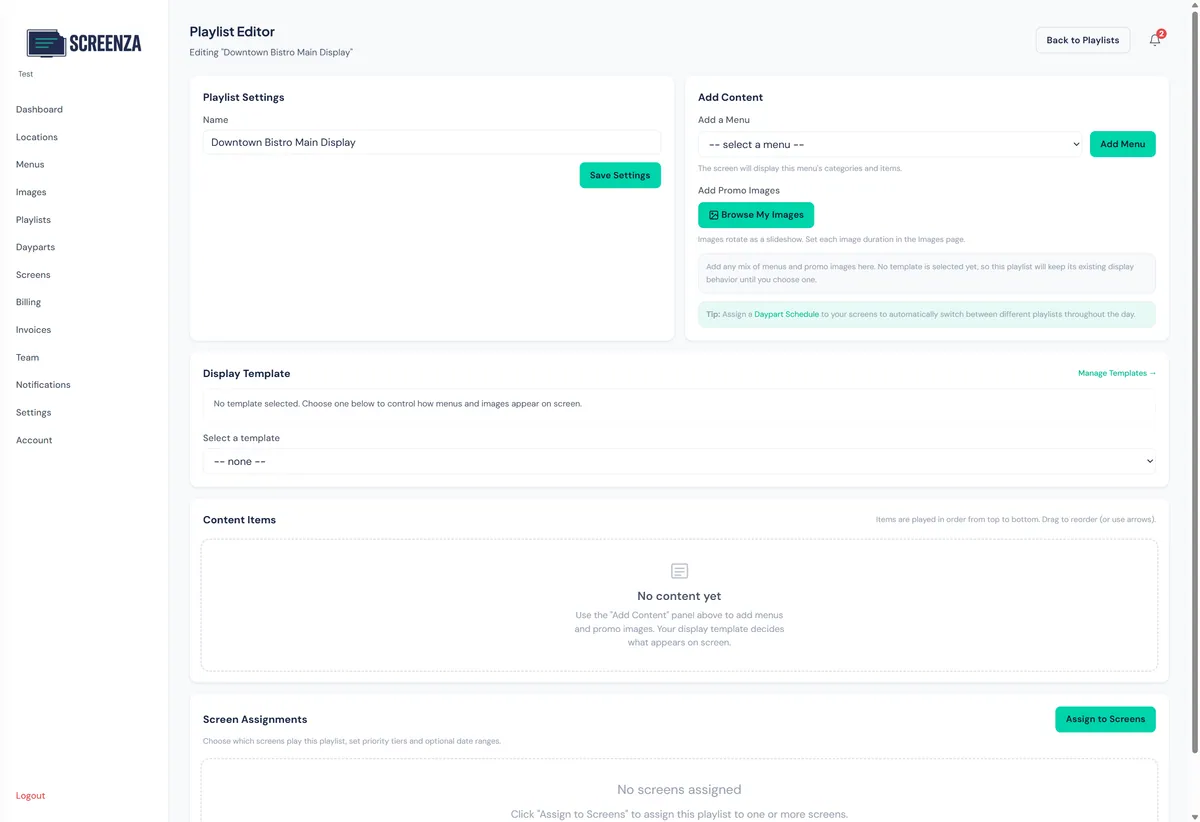
Tip: Playlists organize your content for display on screens.
Add Image to Playlist
Add your generated menu board to the playlist.
- Click Browse My Images.
- Select the generated menu board image and click to add it.
- Select the “Ads & Menu Boards” display template.
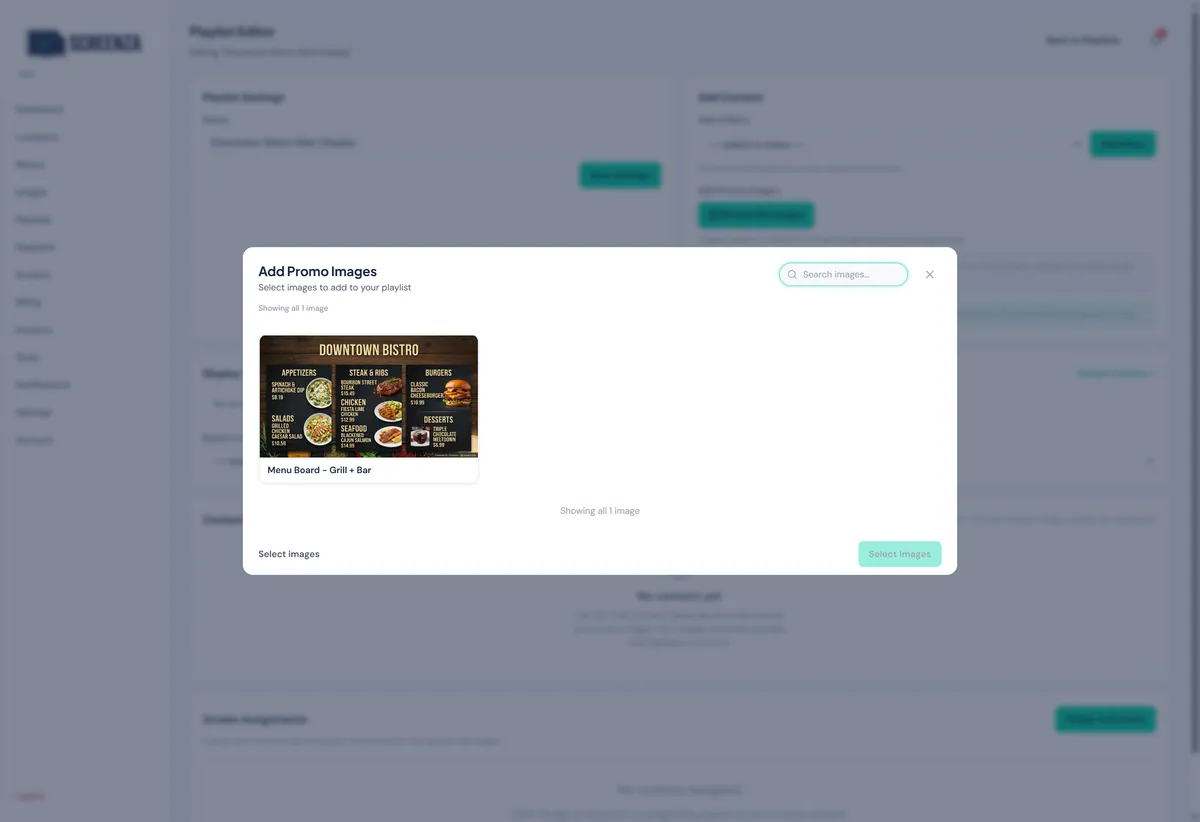
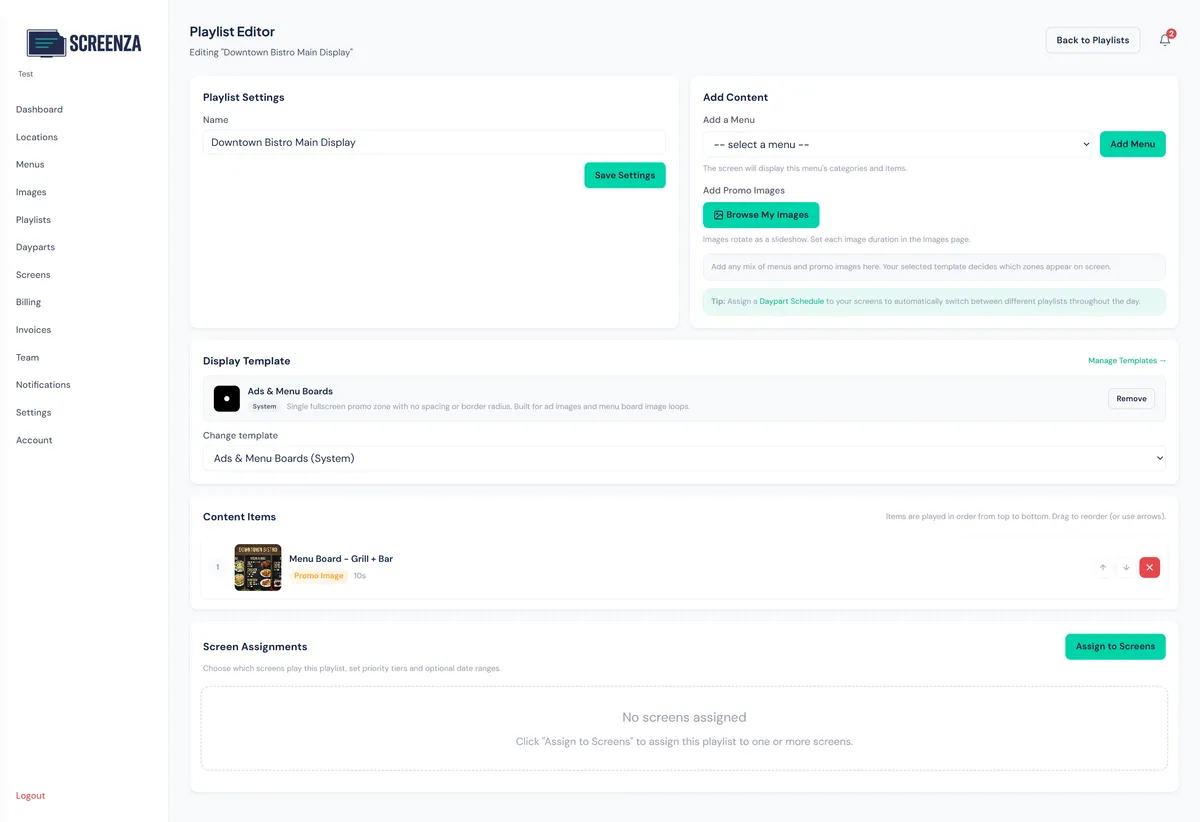
Tip: The “Ads & Menu Boards” template displays your images in a fullscreen slideshow.
Assign Screen
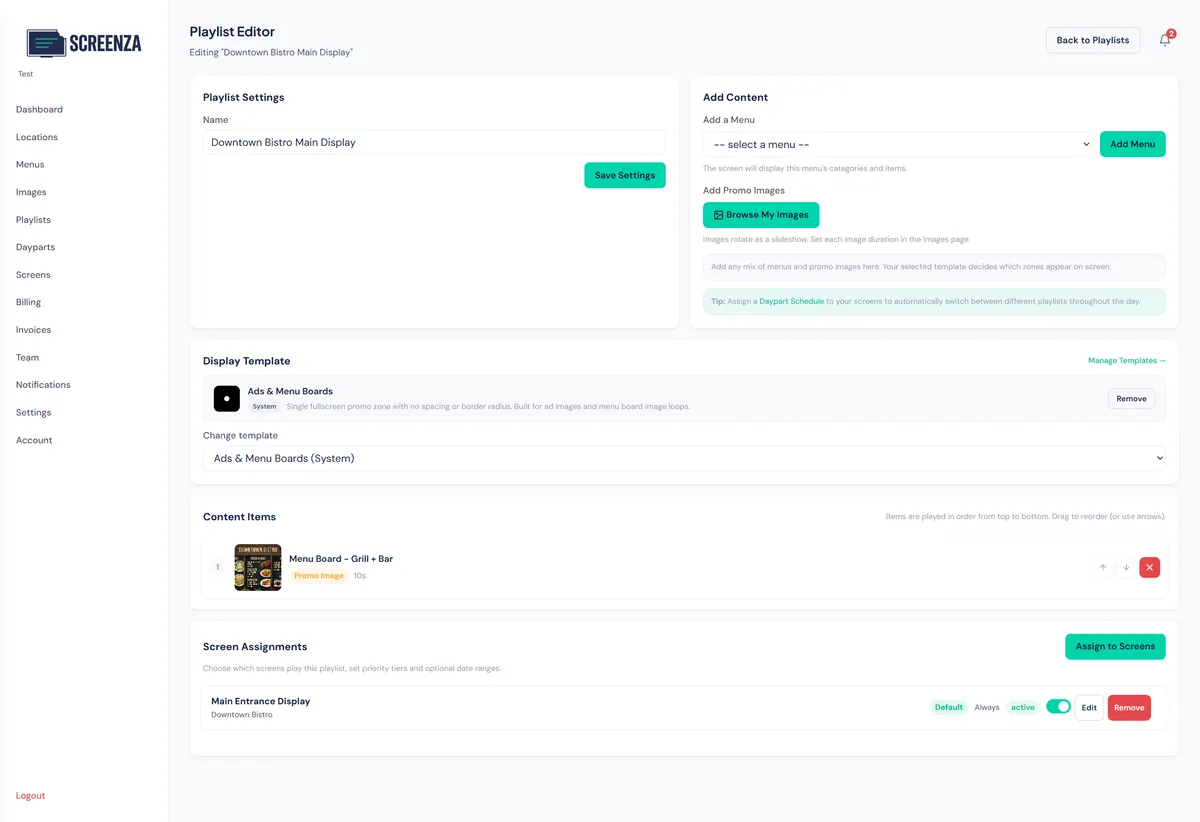
Connect your playlist to a display screen.
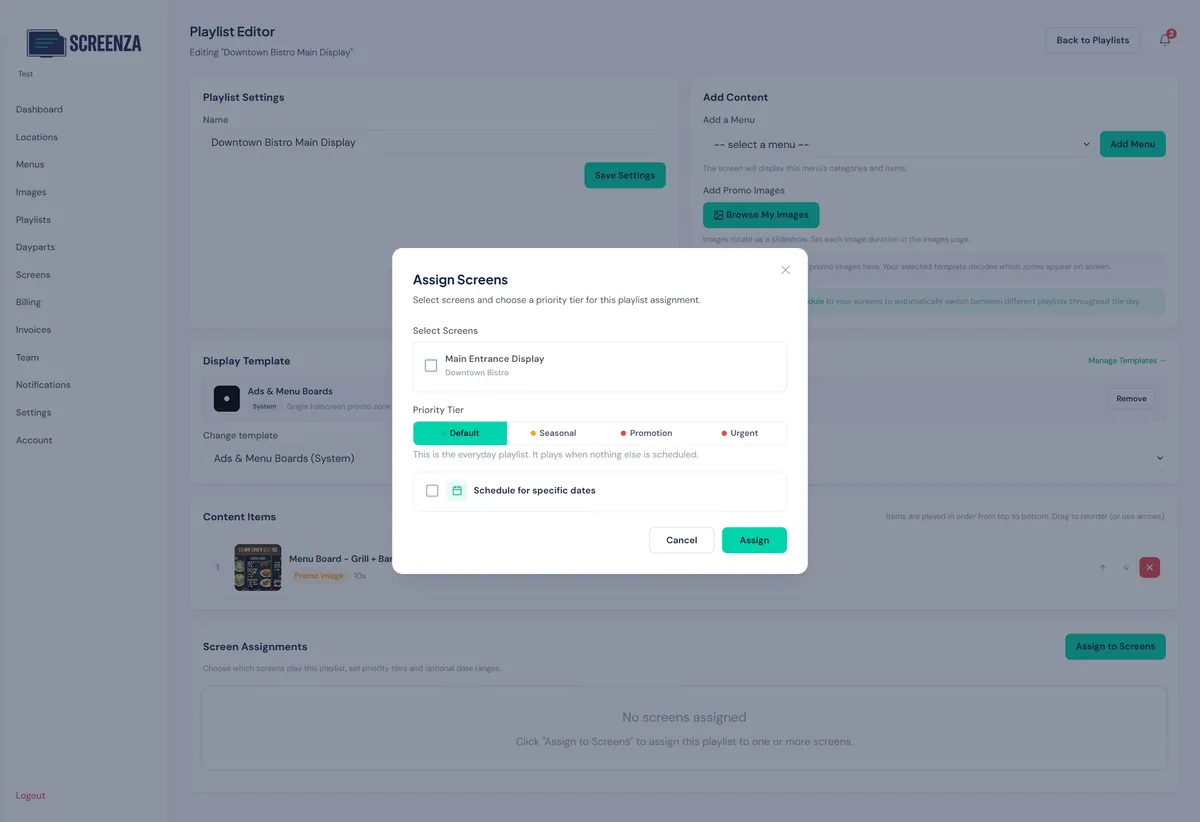
- Click Assign to Screens.
- Check your screen in the assignment modal.
- Click Assign.
View Your Display
See your menu board live on the browser player.
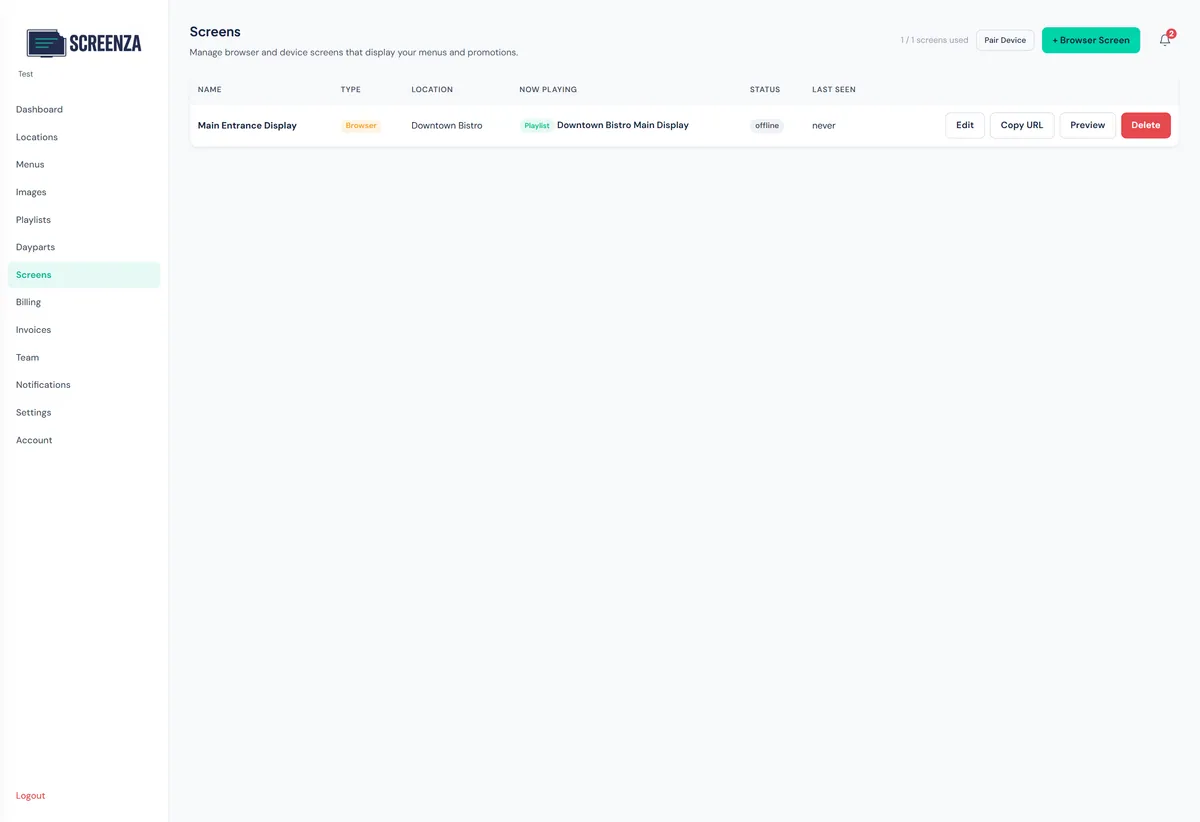
- Go to Screens in the sidebar.
- Click Preview on your screen to see it live.
Troubleshooting and common questions
Quick fixes for the four problems new screens hit most often.
My screen shows a blank page — what should I check?
A blank screen is almost always a URL or connectivity problem. Confirm the device is online and the display URL was copied completely — it is unique per screen and looks like app.screenza.tv/display/abc123. Reload the page, then check Screens › Preview to confirm the playlist is assigned.
The pairing code was not accepted — why?
Pairing codes are single-use and expire quickly. Open Screens › Pair Device for a fresh code and enter it within a minute. If it still fails, check the player is online and signed in to the same Screenza account.
The menu image looks blurry on a 4K TV — how do I sharpen it?
Match the image size to the display: 1K boards are fine up to 1080p, while 4K TVs look best with a 2K or 4K board. If it still looks soft, check the layout matches the screen orientation (landscape or portrait) so the image is not stretched.
How do I change the menu after the board is live?
Edit the menu in your dashboard, regenerate the menu board image with the updated items, and swap the new image into the playlist. The screen picks up the change within about 30 seconds — you never have to touch the TV. For the wider workflow, see restaurant digital signage content management.
Everything working? Next, watch the video and deploy your menu board to a TV with a playlist and a scheduled screen.